 Class Seat Jam
Class Seat Jam
Game được lưu trữ bởi bên thứ ba và hoàn toàn miễn phí. Đừng bao giờ nhập mật khẩu hay thông tin thanh toán trong game.
Giới thiệu game
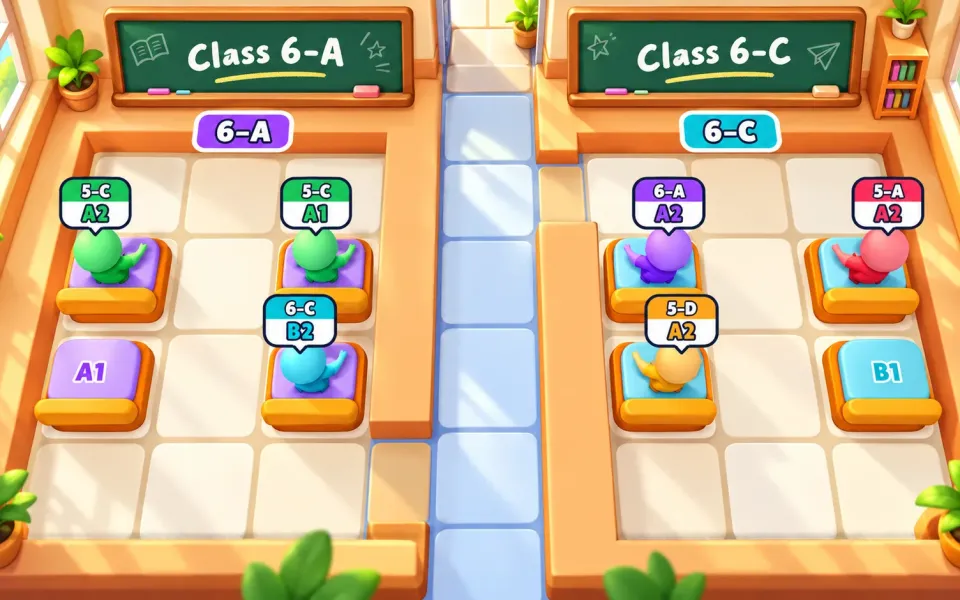
Class Seat Jam is a 3D seat puzzle set in a busy school. Every student is sitting in the wrong seat, and it is your job to get each one back where they belong before the clock runs out.
Tap a student and they run straight to their own seat, as long as the way is clear. Seated students and desks block the path, so the order of your moves matters: send the wrong student first and someone gets trapped. Every student wears a tag with their seat code, like B2 for column B, row 2, and the seat letters and numbers are painted on the classroom walls.
The school grows as you play. You start in a single classroom, then move to hallways with several classes, then to a school yard where students cross between buildings, and finally to a full campus. In bigger maps the tag also shows the class, such as 5-A or 5-C, and each class has its own badge so you always know where to go. From level 8, sleepy students join in: tap once to wake them up, then again to send them to their seat.
When you get stuck, boosters help: undo your last move, get a hint for a safe next move, send a blocking student home, or add 30 seconds to the clock. Earn coins for every student you seat and every level you clear, open a reward chest every 5 levels, collect a daily gift, and spend your coins on hats for the students and new seat styles.
100 levels mix easy, normal and hard puzzles, and every level can be solved.
Cách chơi
Tap a student to send them to their own seat. They can only go if the path to the seat is free. Match the tag above each student to the seat code: the letter is the column and the number is the row, both painted on the classroom walls. In levels with several classes, the top of the tag shows the class. Plan your order so no one gets blocked, and seat everyone before the timer ends. Use boosters when you get stuck.
Điều khiển
Tap or click a student to send them to their seat. Drag to move the view, and pinch or use the mouse wheel to zoom. Tap the booster buttons to undo, get a hint, remove a student or add time.